

jetStamp 990
Comprehensive Software Tutorial Video for Reiner PCset
How to Insert/Replace Ink Cartridges on the jetStamp 990
Note: This video was made for our discontinued models, jetStamp 790MP & 792MP. The machine in the video will look slightly different, but the cartridge and cartridge carrier are exactly the same. Moving the cartridge to the center is slightly different than shown in the video.
To Move The Cartridge to the Center
Click MENU (small black button all the way on the right hand side of the machine)- the screen will then read “Cartridge Change Start”
Click SELECT (same small black button all the way on the right hand side of the machine) – The cartridge carrier will slide to the center and the screen will read “Cartridge Change End.”
Then, you can put the cartridge in the machine as shown in the video and click SELECT again and the carrier will slide back to the left and you’ll be ready to print.
Cartridge Care
How to Insert the Cartridge Correctly
Important Note:
When inserting the cartridge it should slide in very easily. DO NOT jam in or put any downward pressure on the cartridge carrier. Any excess pressure can cause damage to the cartridge carrier and prevent communication and printing ability. This can result in the cartridge carrier needing to be replaced in order for the machine to work again and communicate properly with the cartridge.
How to Add Placeholder Text and Change Text Directly From the jetStamp 990
Additional Available Accessory – Positioning Guide
How to Set Your jetStamp 990 For a More Crisp and Darker Imprint
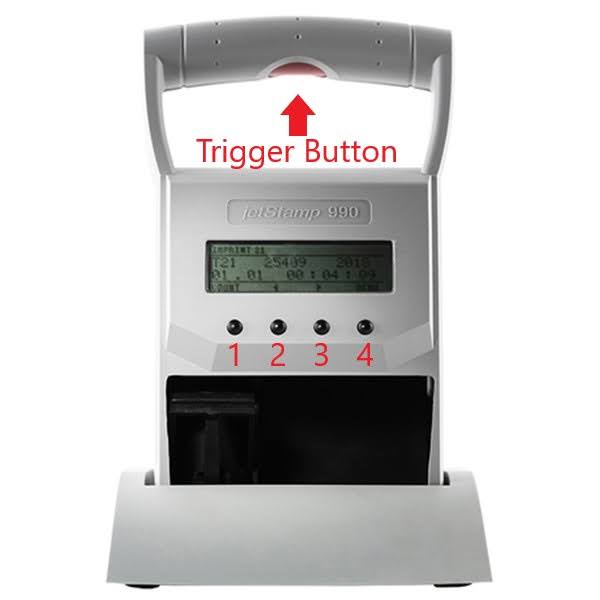
You will need to click the buttons in a sequence to change the cartridge type. Click the button under the word that is BOLD to sequence through and change the ink type. Each button has a number value as shown in the picture below as a guide.
4 Menu – Screen will read Cartridge change Start
2 – Click the left arrow 3X until you see Settings on the screen
4 Select – Screen will read Cartridge type
3 – Click the right arrow 1X until you see Double Print ON / OFF
4 Select – Screen will read Double Print- Below double print ON or OFF will be blinking.
2 or 3 or If you want Double Print ON, make sure ON is blinking – If you want double print OFF, make sure OFF is blinking.
4 Ok – Once you reach your desired ON or OFF position, select it
1 Return – Click return twice, this will navigate you back to the main screen. What you want to print should now be visible, If it is not please select button 2 or 3 until you see your desired imprint or use the software to transfer new imprints to the machine
Common Ink SKUs for Your JetStamp 990
This unit has the ability to accommodate multiple ink types. This includes water based and quick drying inks. Each ink type requires a specific firing parameter to produce clear and crisp imprints. If you use an ink setting that does not correlate with the cartridge type you’re using you can actually damage the cartridge to the point that it will not print clearly or at all.
Each time you put in a new cartridge glance at the wording at the top of your machine. One of the things you will see displayed is an ink name. It will say P1-…
The cartridge labels may have a different SKU than the cartridge settings shown on the machine. Some of the ink types are not commonly used.
- P1-S-BK-51604A = 790BK Black Water Based Ink (you can use this for the blue water based ink as well)
- P1-S-RD-51605R = 790RD Red Water Based Ink
- P1-MP2-BK = 790BKQD Black Quick Drying Ink
- P1-MP4-BK and P1-MP EM790BKQDX = 790BKQDX Black Aggressive Quick Drying Ink
- P1-MP6-YE = 790YEQD Yellow Quick Drying Ink
How to Change the Ink Settings on Your JetStamp 990
You will need to click the buttons in a sequence to change the cartridge type. Click the button under the word that is BOLD to sequence through and change the ink type. Each button has a number value as shown in the picture below as a guide.
4 Menu – Screen will read cartridge change start
2 or 3 Click through until you see settings
4 Select – Screen will read Cartridge type
4 Select – Screen will read cartridge and P1-… which will be blinking (the blinking name is the cartridge type that is currently selected on the machine)
2 or 3 Use the arrows to scroll through the various inks
4 Ok – Once you reach your desired ink type click ok to select it
1 Return – Click return twice, this will navigate you back to the main screen. What you want to print should now be visible, If it is not please select button 2 or 3 until you see your desired imprint
Check the top of your screen again to make sure the new ink type is showing at the top of your machine